logo

World of Rental Help Center

Exact matches only
Search in title
Search in content
Search in posts
Search in pages
Filter by Categories
Add / View Leases
Applicants
Contacts/Vendors
Dashboard
Documents
Getting Started
Inspection
Manage Account
My Profile
Notifications
Properties
Recurring Tasks
Recurring Transactions
Reports
Security
Support
Tasks
Tenants
Tenants Assessment
Tenants with Access
Transactions
Transactions Types
Useful Links

Edit/Delete Applicant

May 20, 2016 by worldofrental

Edit Applicant details:

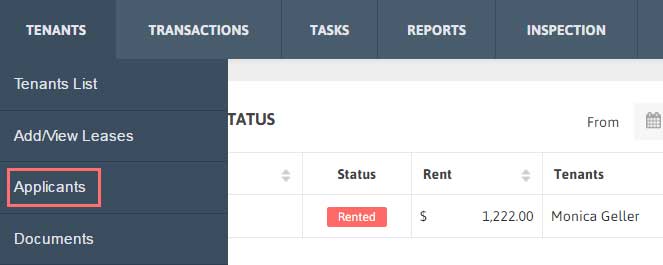
1. Click Tenants → Applicants from the Menu.
2. Click on ‘Edit’ button of the Applicant you want to modify details of. Click ‘Save’ to save the changes.

Delete Applicant details:

1. Click Tenants → Applicants from the Menu.

2. Choose the Applicant you want to delete, click on arrow under Action and click ‘Delete’ button.

Filed Under: Applicants

Add a Lease

May 19, 2016 by worldofrental

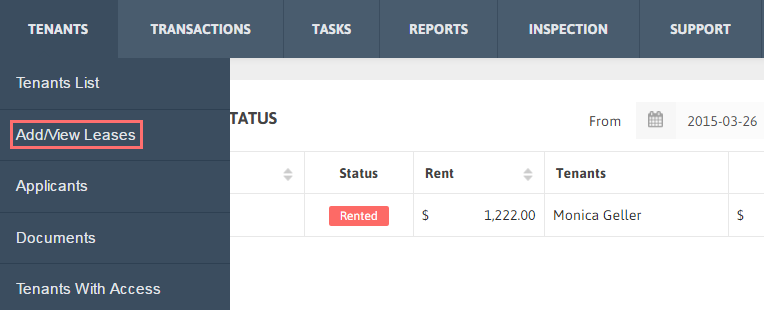
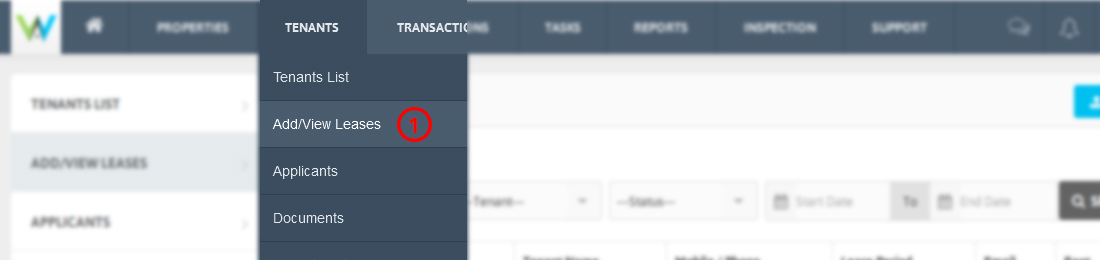
1. Click Add/View Leases under Tenants from Top menu.

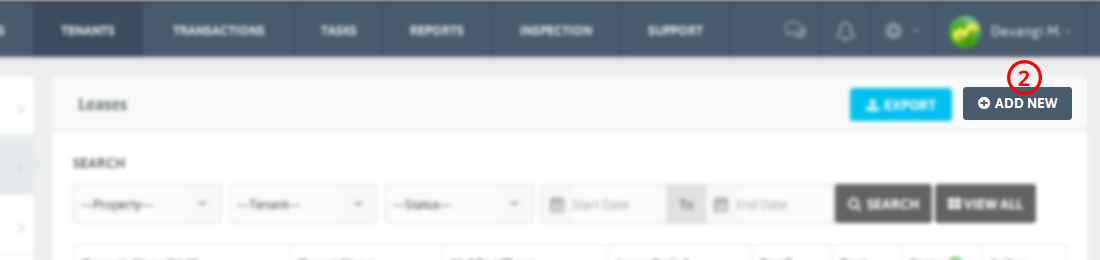
2. Click Add new.

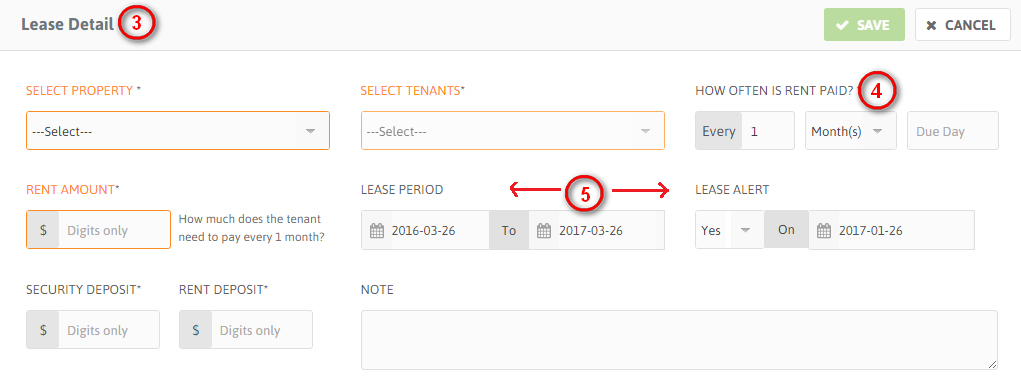
3. Fill the Required details for Lease like selecting Property, Tenants associated with the Property and Rent amount.

4. Set how often the rent will be paid and on which day.

5. Add Lease period by selecting start and end date of lease. Set Lease alert to Yes if you want to receive alert for lease end date.

*It’s a good practice to set the Lease Alert date to a day prior to lease end date.

6. Click Save to add the Lease.

Filed Under: Add / View Leases

View a Lease

May 19, 2016 by worldofrental

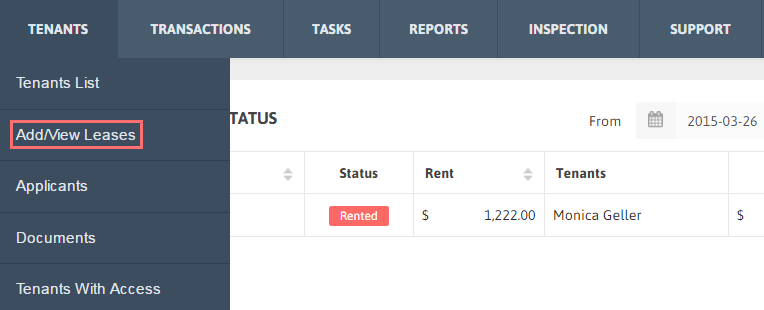
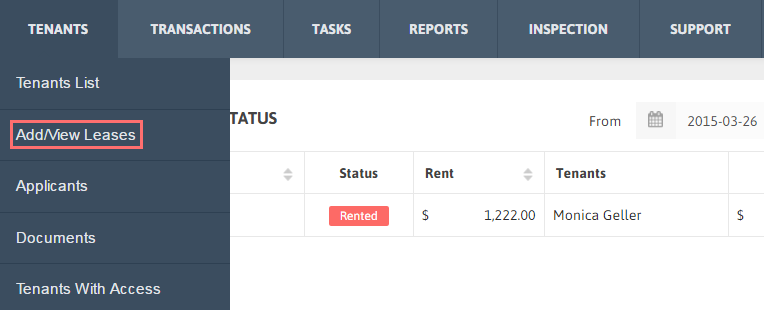
1. Click Tenants → Add/ View Leases from the Menu.

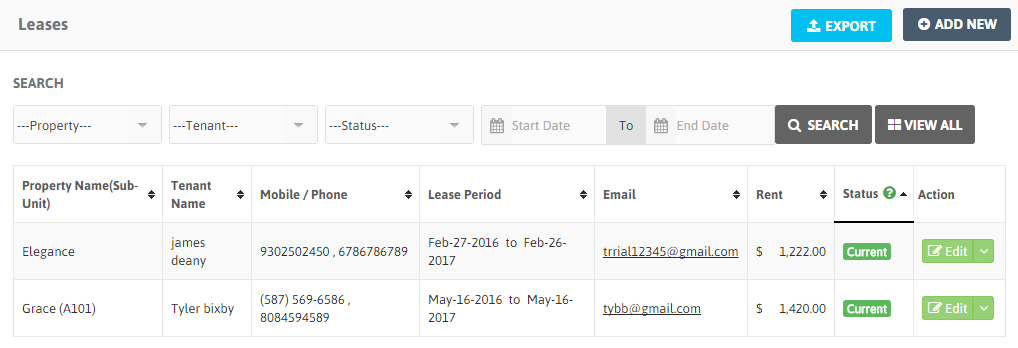
2. A table with Lease list will be shown along with Property Name, Tenant Name, Contact No., Lease Period, Email, Rent Amount and Status.

Filed Under: Add / View Leases

Filter a Lease

May 19, 2016 by worldofrental

1. Click Tenants → Add/ View Leases from the Menu.

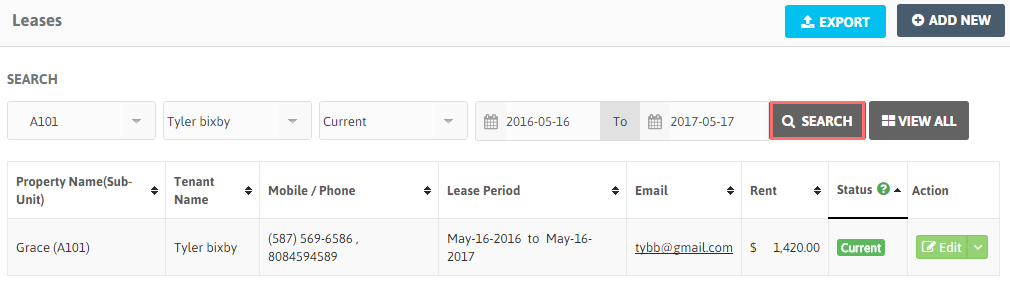
2. To search your desired Leased Property just select Property Name, Tenant Status and/or Lease Start and End date. Click ‘Search’ to get the filtered results for Lease info.

Filed Under: Add / View Leases

Export a Lease

May 19, 2016 by worldofrental

1. Click Tenants → Add/ View Leases from the Menu.

2. To export your all Leases with its details, click ‘Export’ button.

3. You can also Export particular Lease by filtering the list.

Filed Under: Add / View Leases

Edit/Delete a Lease

May 19, 2016 by worldofrental

Edit a Lease:

1. Click Tenants → Add/ View Leases from the Menu.

2. Click ‘Edit’ button of the the Lease you want to edit the details of. You’ll be redirected to the ‘Lease Detail’ page. Modify the lease details and don’t forget to click ‘Save’.

Delete a Lease:

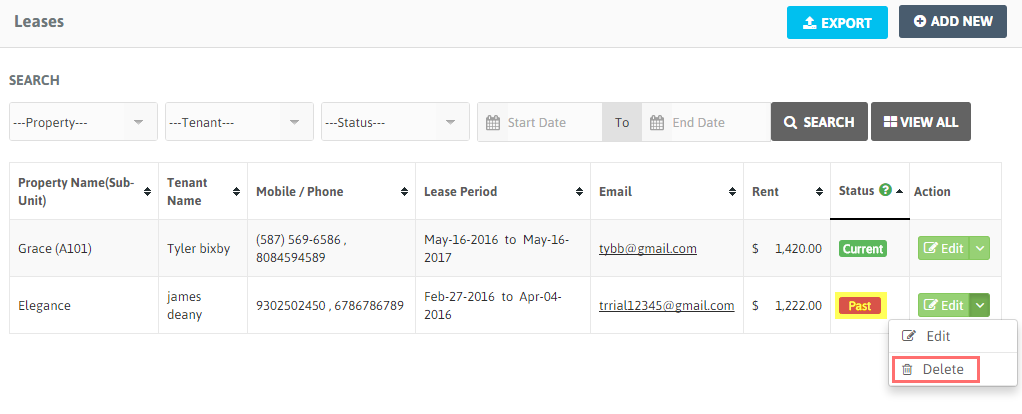
1. To Delete any Lease, Make sure you have deleted all the Transactions data related to that lease.

2. Also it is required to make the Tenant’s status ‘Past’ for successfully deleting the lease. For that modify the lease period by clicking on ‘Edit’ and then adjusting ‘Lease Period’ to make the Tenant’s status as ‘Past’.

3. After successfully completing these steps click on ‘Delete’ to remove lease from your account.

Filed Under: Add / View Leases

Add Tenants

May 19, 2016 by worldofrental

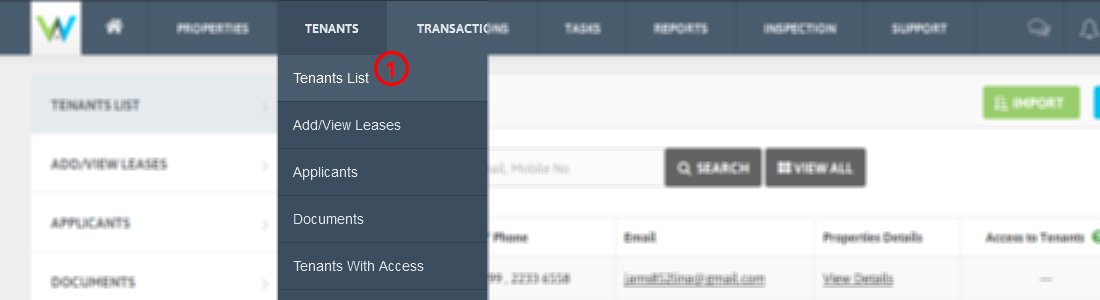
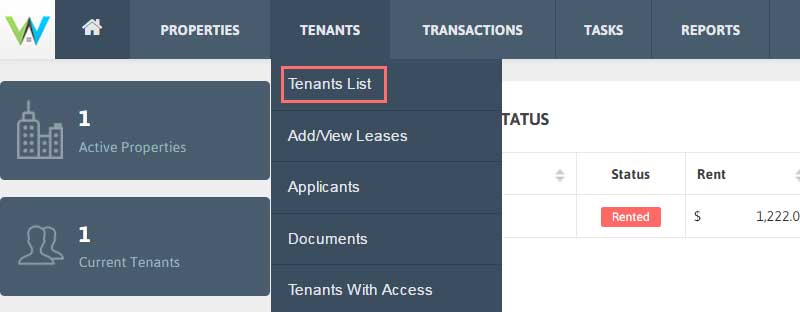
1. Click Tenants List from Tenants on Top menu.

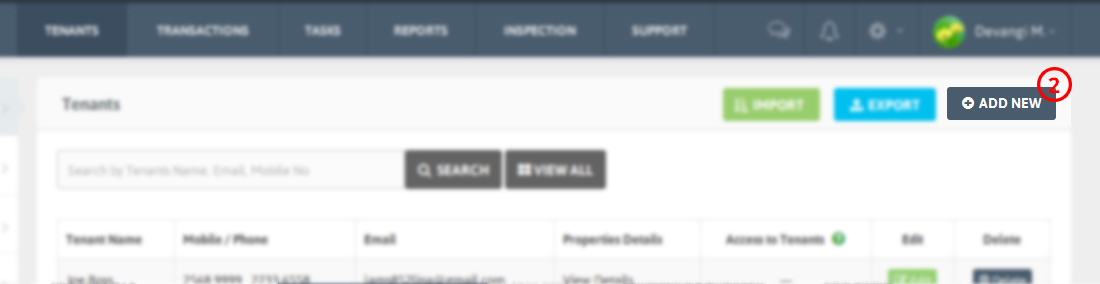
2. Click Add new.

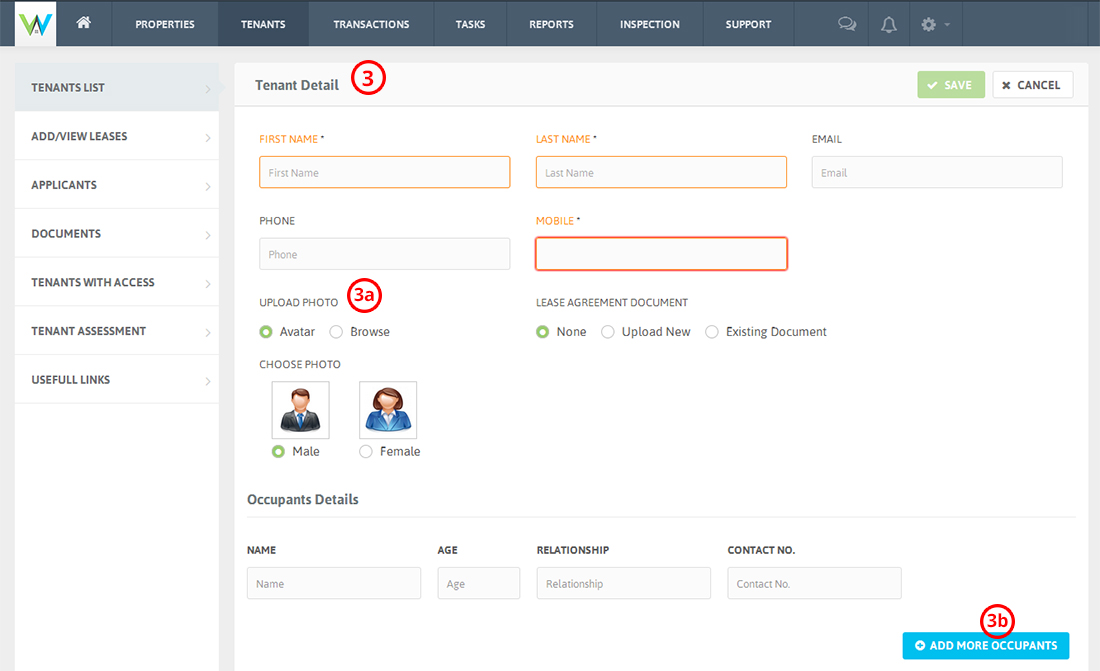
3. Fill the required Tenant Details.

3a. You can also choose an avatar or upload Tenant photo and documents related to Tenants.

3b. If a unit has more than one occupants, click Add more occupants to enter their details.

4. Click save to add the Tenant.

Filed Under: Tenants

View Tenants

May 19, 2016 by worldofrental

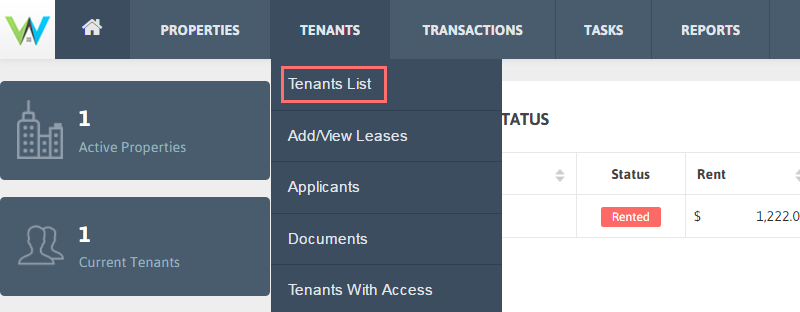
1. Click Tenants List from Tenants on Top menu.

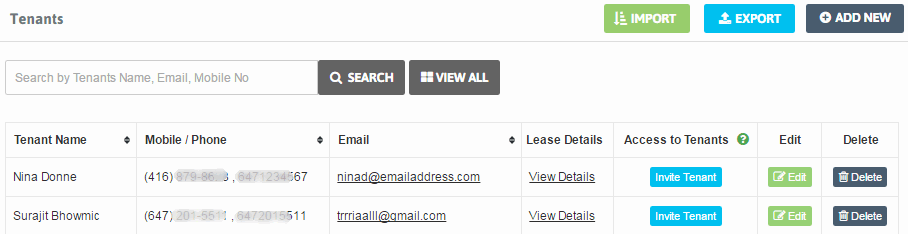
2. A table with Tenant List will be shown along with Tenant’s Name, Contact No, Email and Lease Details.

Filed Under: Tenants

Filter/Search Tenants

May 19, 2016 by worldofrental

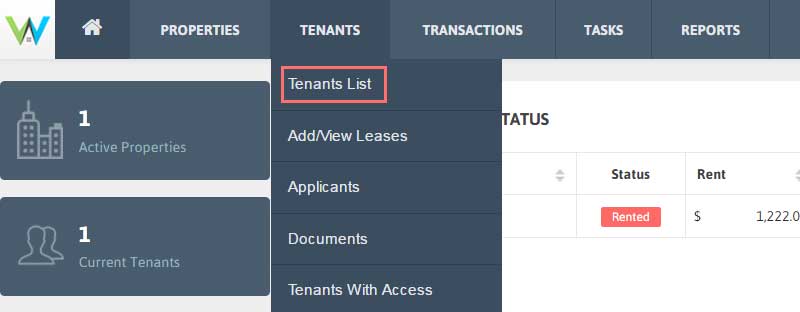
1. Click Tenants→Tenants List from the Menu.

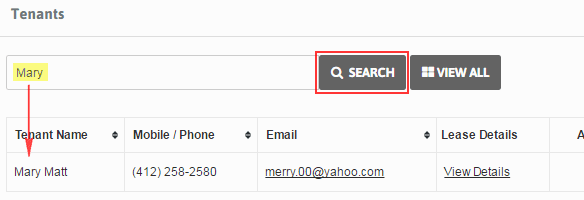
2. To search your desired Tenant’s info just type Tenant Name, Email and/or Contact No. in the Search text box. Then click ‘Search’. You’ll get the filtered results for tenant info.

Filed Under: Tenants

Export/Import your Tenants details

May 19, 2016 by worldofrental

Export your Tenants details:

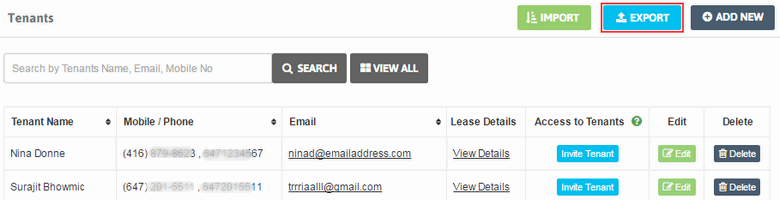
1. Click Tenants → Tenants List from the Menu.

2. To export all your Tenants with its details, click ‘Export’ button.

3. You can also Export particular Tenant by filtering the list.

Import your Tenants details:

1. It is faster to import data into World of Rental than to enter it manually if you have lots of Tenants to add.

2. When you import data, it’s really important to import it in the correct order and format.

3. For each import file that’s required, use the exported file as a template file.

4. We recommend importing in specific order; hence export a file, use it as template and complete the data import.

5. World of Rental offers an Excel (.xls) template for each data import type. The data import process is very particular about the formats used in the file.

6. Once the file is complete and saved to your computer, click ‘Import’ and select the file.

7. Click the ‘Open’ button. The page will refresh and you’ll see the new data.

Filed Under: Tenants

  • « Previous Page
  • 1
  • …
  • 5
  • 6
  • 7
  • 8
  • 9
  • 10
  • Next Page »
Getting Started
    • Upgrade/downgrade your account
    • Add your first Property
    • Add Your first Tenant
    • Add your first Lease
    • Add your first Transaction
    • Add your first Task
    • Add your first Inspection
Dashboard
    • Dashboard Date Range
    • Properties Financial Status Table
    • Pie chart
    • Monthly chart
Properties
    • Add Properties
    • View Properties
    • Property Units
    • Filter Properties
    • Export/Import your Properties
    • View Tenant List for The Particular Property
    • Active/ Inactive Property Status
    • Action Tab of Property List Table
Tenants
    • Add Tenants
    • View Tenants
    • Filter/Search Tenants
    • Export/Import your Tenants details
    • View Lease details of particular Tenant
    • Invite Tenants
    • Edit/Delete Tenants
Add / View Leases
    • Add a Lease
    • View a Lease
    • Filter a Lease
    • Export a Lease
    • Edit/Delete a Lease
Applicants
    • Add Applicants
    • View Applicants
    • Filter/Search Applicants
    • Select as Tenant
    • Edit/Delete Applicant
Documents
    • Add Document
    • View Document
    • Download Document
    • Edit/Delete Document
Tenants With Access
    • Re-invite Tenant
    • Disable Access for Tenant
Tenants Assessment
    • View the Reports
    • Filter/Search the Reports
    • Export the Reports
Useful Links
    • Useful Links
Transactions
    • Add Transactions
    • View Transactions
    • Filter/Search Transactions
    • Export your Transactions data
    • E-signed Receipt email option
    • Edit/Delete Transaction
    • Mark as Unpaid
Recurring Transactions
    • Add Recurring Transaction
    • View Recurring Transaction
    • Filter/Search Recurring Transaction
    • Export Recurring Transaction data
    • Edit/Use/Delete Recurring Transaction
Transactions Types
    • Add Transactions Types
    • View Transactions Types
    • Edit/Delete Transactions Types
Tasks
    • Add Tasks
    • View Tasks
    • Filter/Search Tasks
    • Export Tasks
    • Edit/Delete Tasks
Recurring Tasks
    • Add Recurring Task
    • View Recurring Task
    • Filter/Search Recurring Task
    • Edit/Delete Recurring Task
Reports
    • Rent Lease Status Report
    • Financial Report
Inspection
    • Add Inspection
    • View Inspection
    • Filter/Search Inspection
    • Export Inspection Data
    • Edit/Delete Inspection
Support
    • Feedback/Feature Request
    • Support Ticket
Notifications
    • View Alerts
    • Filter Alerts
    • Email to Tenant
Manage Account
    • Upgrade/downgrade your account
    • Payment Details
    • Cancel the Account
    • Re-activate Account/Service
My Profile
    • Update your Profile
    • Update Password
    • Sign out of all devices
Contacts/Vendors
    • Contacts/Vendors
Security
    • Two Step Verification
    • Forgot your Backup code?
Product
  • Features
  • Pricing
  • Sign up
  • App for Android
  • App for iOS
Company
  • About us
  • Investors
  • Refund Policy
  • Contact
Support
  • FAQ's
  • Blog
  • Security
Social Media links
  • Facebook
  • Twitter
  • you tube
  • Google plus
  • Pinterest
  • Tumblr
  • instagram
  • Stumble

Copyright ©2025-2026 World of Rental, Inc. All rights reserved. Read our Privacy Policy & Terms of Service. | WorldofRental.com is owned and operated by Rootways Inc.

TOP