logo

World of Rental Help Center

Exact matches only
Search in title
Search in content
Search in posts
Search in pages
Filter by Categories
Add / View Leases
Applicants
Contacts/Vendors
Dashboard
Documents
Getting Started
Inspection
Manage Account
My Profile
Notifications
Properties
Recurring Tasks
Recurring Transactions
Reports
Security
Support
Tasks
Tenants
Tenants Assessment
Tenants with Access
Transactions
Transactions Types
Useful Links

Upgrade/downgrade your account

May 25, 2016 by worldofrental

If you upgrade in the middle of your subscription period for your current paid plan, then you will be charged for the price difference between the current plan and new plan. On the next recurring you will be charged as per your new plan.

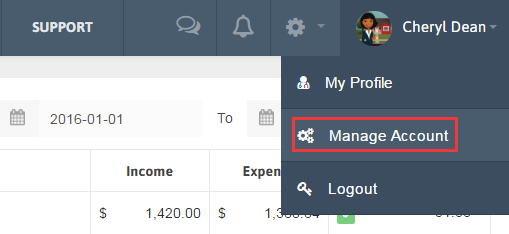
1. To Upgrade, Click the arrow beside your Name in the Menu. Then click Manage Accounts.
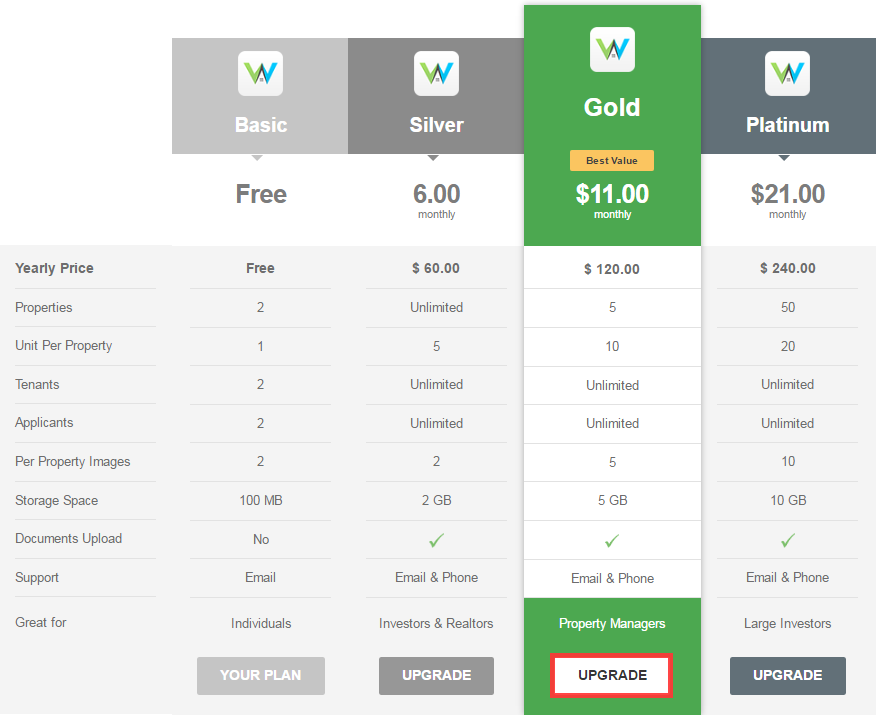
2. Compare all the plans and click on ‘Upgrade’. After that, Add Payment Info to start using the upgraded plan.
While in case if you downgrade in the middle of your subscription period for your current paid plan, then amount will not be credited at a time. But the next recurring will be according to your new plan.
Filed Under: Getting Started, Manage Account

Add your first Property

May 16, 2016 by worldofrental

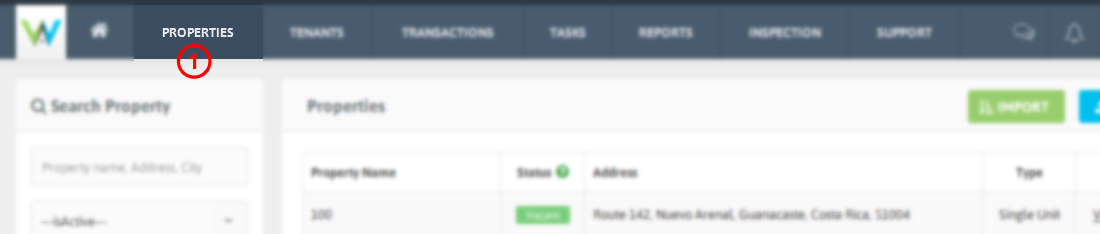
1. Click Properties from the top Menu.

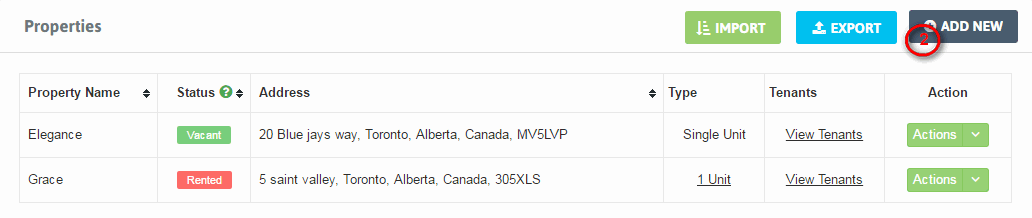
2. Click Add New.

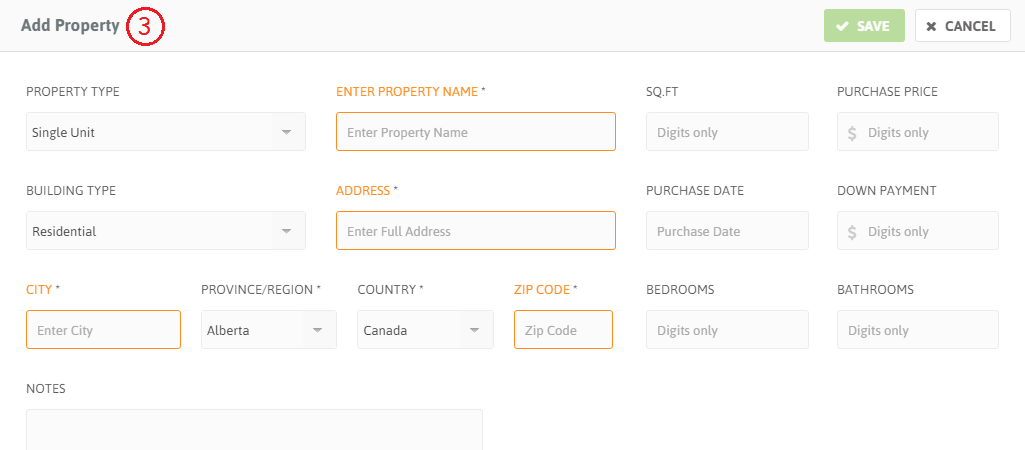
3. Fill the required details for your Property.

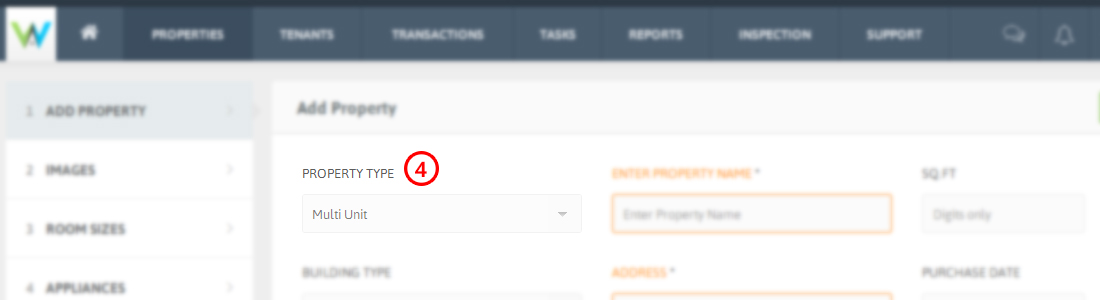
4. If your Property includes multiple units, select Multi Unit as Property Type.

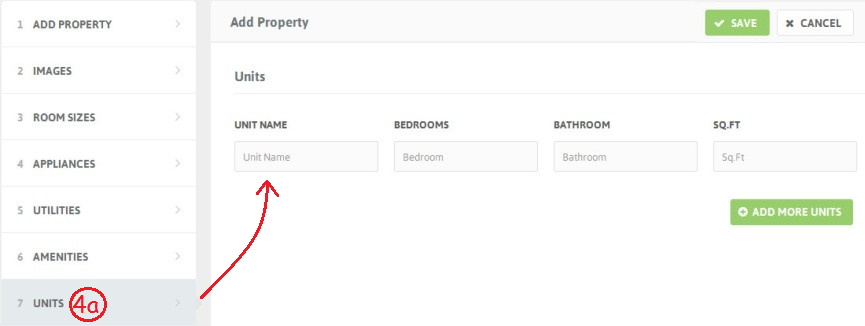
4a. Add multiple units of a Property by clicking Units from Left sidebar. Fill the details for the unit. Click Add more units for creating additional units.

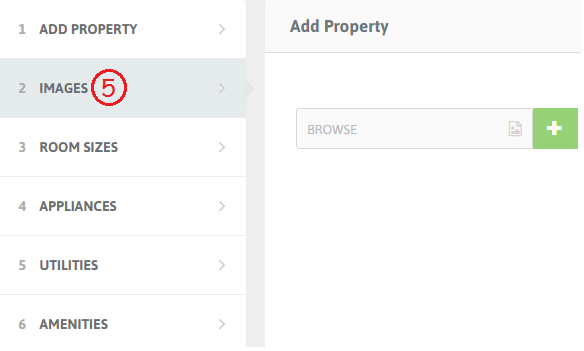
5. Click Images on the Left Sidebar to add images of your Property. Click [+] to add more images.

-You can add Room sizes, Appliances, Utilities and Amenities details from the Left sidebar options. As shown in above screenshot.

6. After filling required details, Click Save to add your Property.

Filed Under: Getting Started

Add Your first Tenant

May 16, 2016 by worldofrental

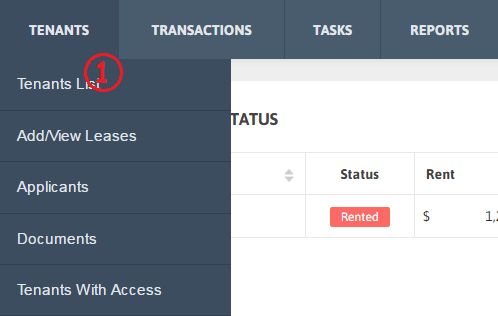
1. Click Tenants List from Tenants on Top menu.

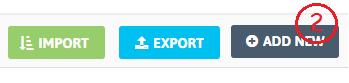
2. Click Add new.

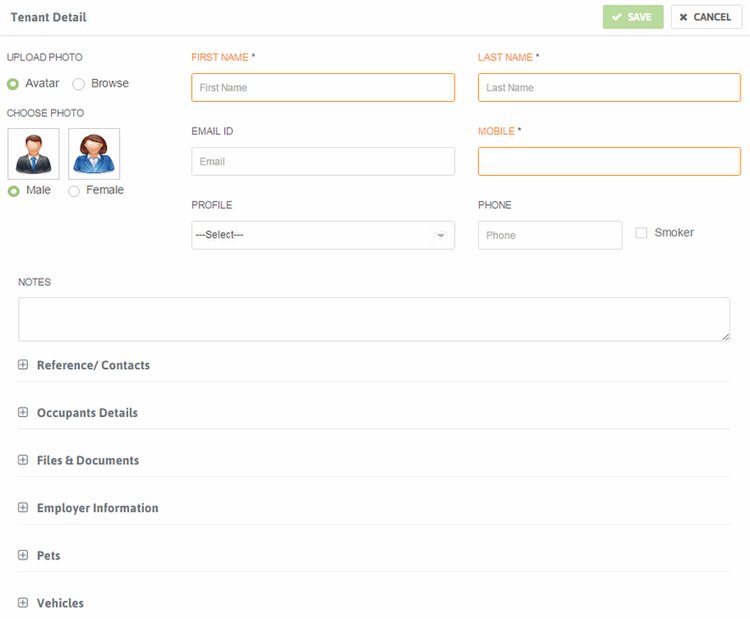
3. Fill the required Tenant Details.

3a. You can also choose an avatar or upload Tenant photo and documents related to Tenants.

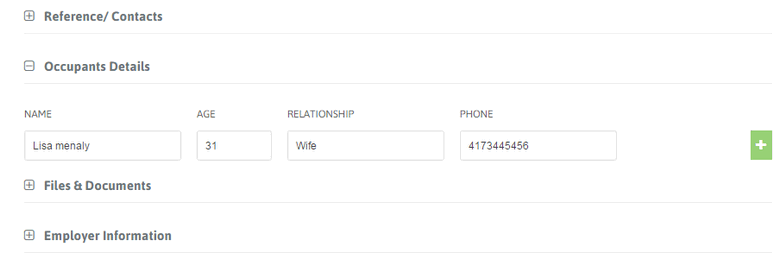
3b. If a unit has more than one occupants, click Add more occupants to enter their details.

4. Click save to add the Tenant.

Filed Under: Getting Started

Add your first Lease

May 16, 2016 by worldofrental

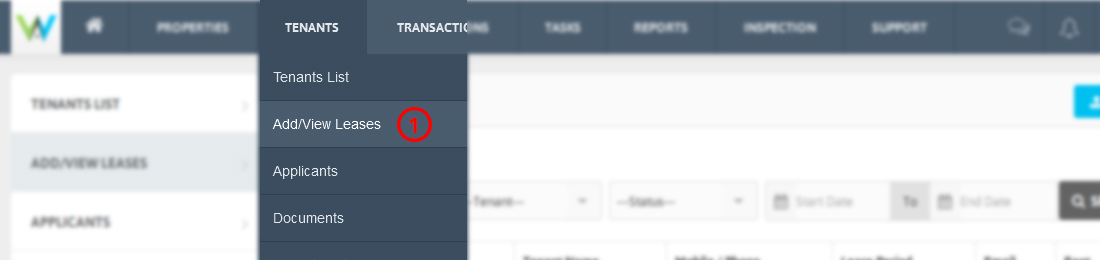
1. Click Add/View Leases under Tenants from Top menu.

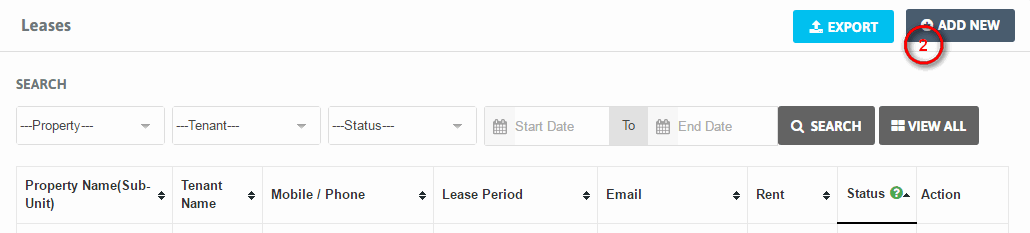
2. Click Add new.

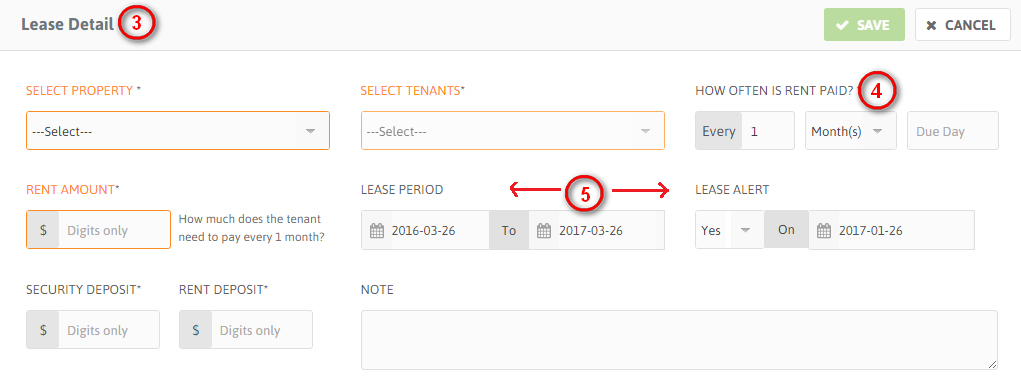
3. Fill the Required details for Lease like selecting Property, Tenants associated with the Property and Rent amount.

4. Set how often the rent will be paid and on which day.

5. Add Lease period by selecting start and end date of lease. Set Lease alert to Yes if you want to receive alert for lease end date.

*It’s a good practice to set the Lease Alert date to a day prior to lease end date.

6. Click Save to add the Lease.

Filed Under: Getting Started

Add your first Transaction

May 16, 2016 by worldofrental

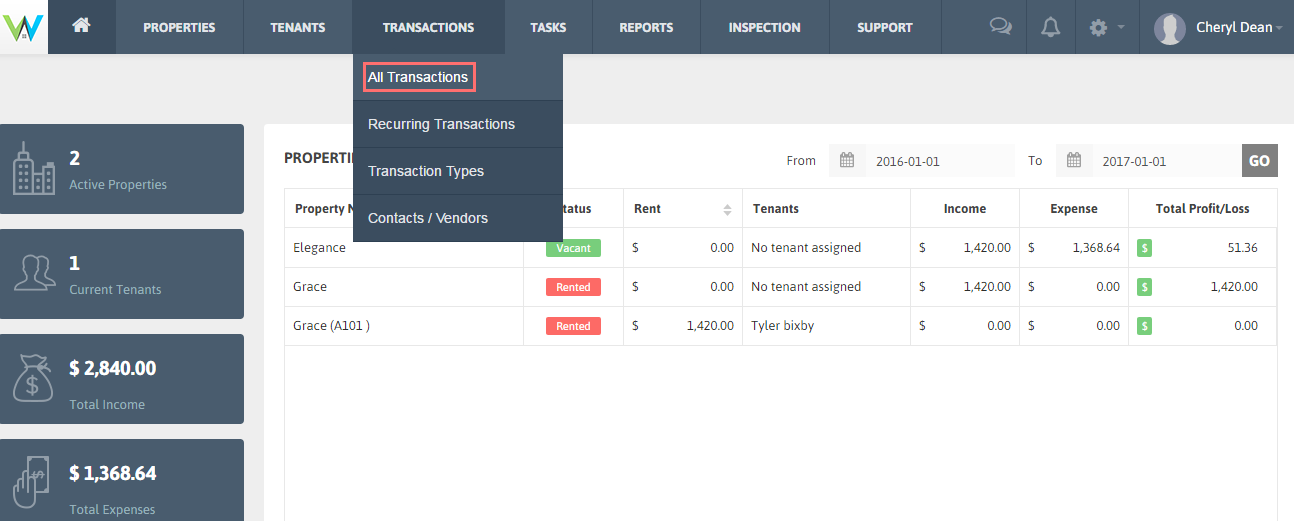
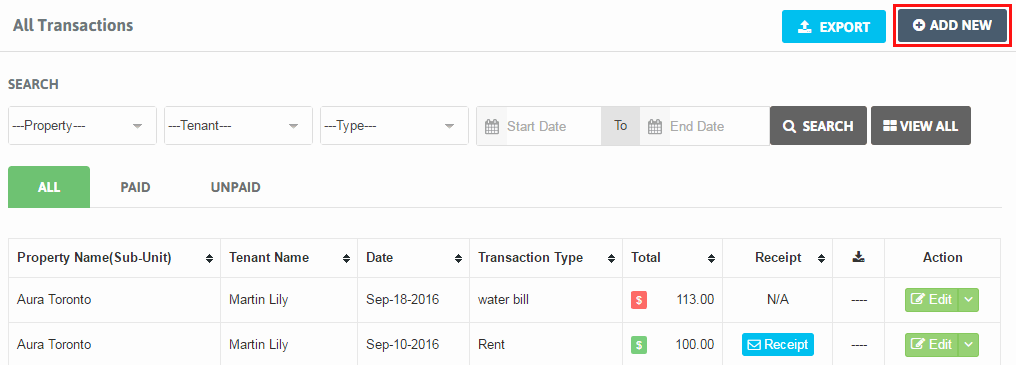
1. Click All Transactions under Transactions from Top menu.

2. Now Click Add new.

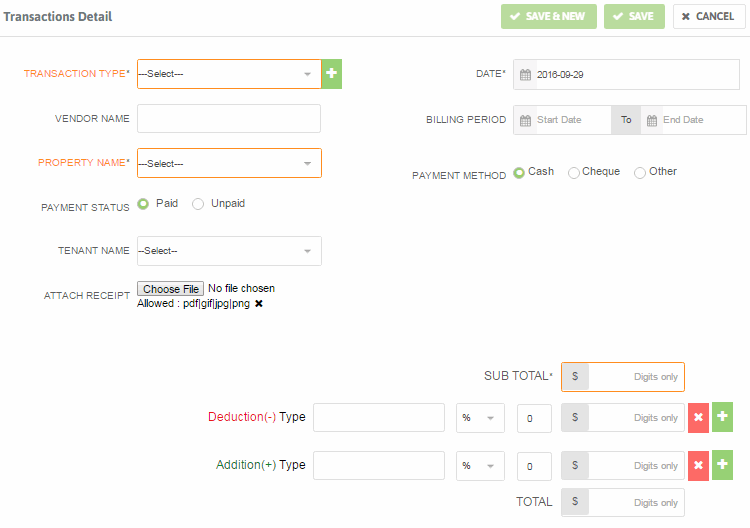
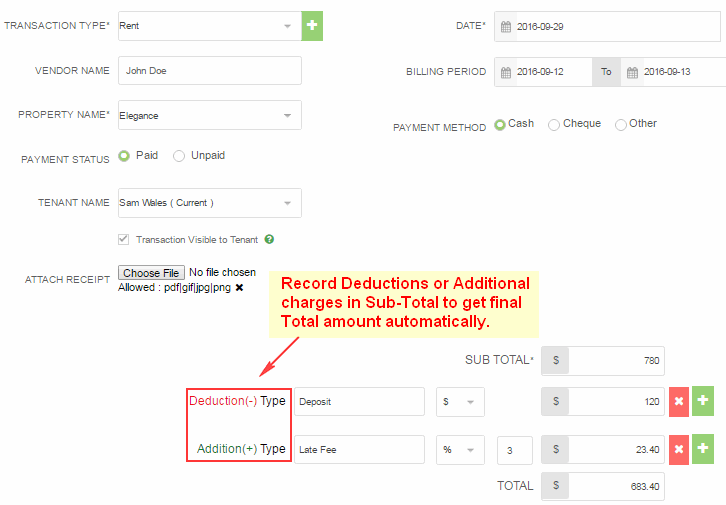
3. Fill the required transaction details.

4. You can record Deductions or Additional Charges in Sub-Total to get final Total amount calculated automatically.

5. Add any notes regarding this transaction.

Filed Under: Getting Started

Add your first Task

May 16, 2016 by worldofrental

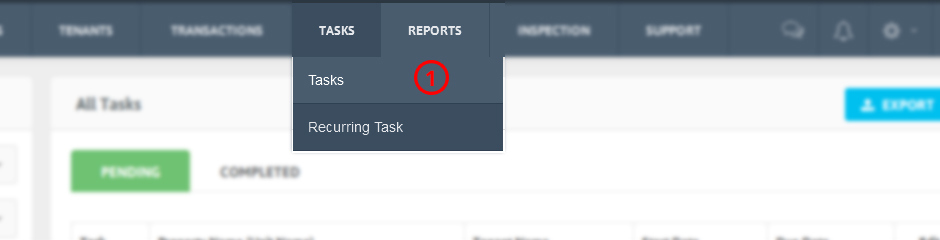
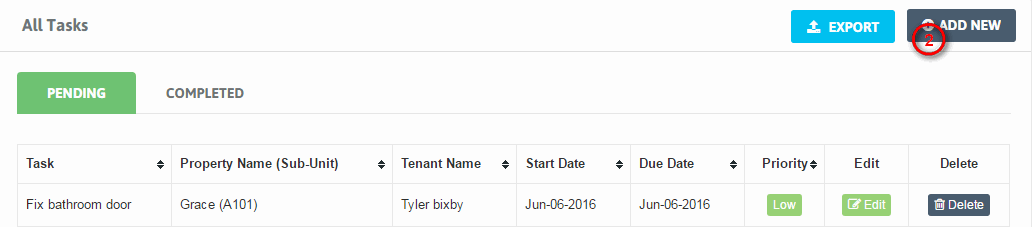
1. Click Tasks under Tasks on Top menu.

2. Now click Add new.

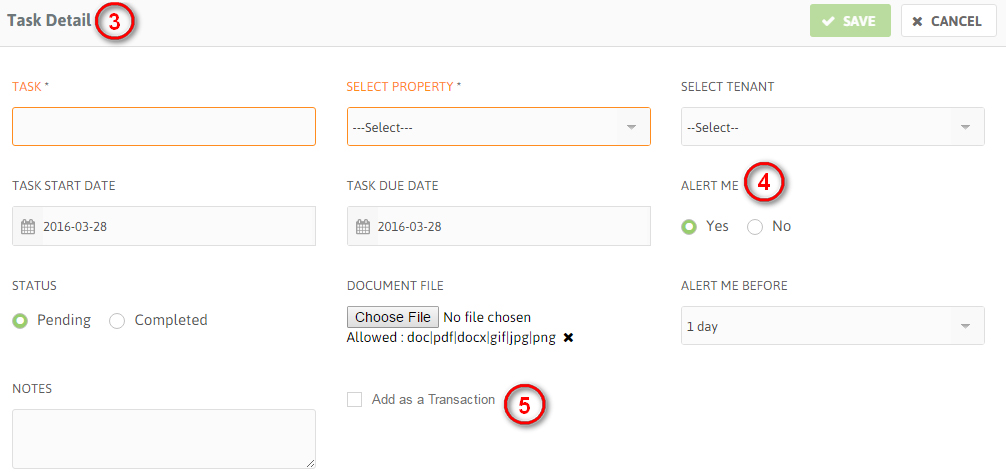
3. Fill the required Task details such as Task (description), Property, Tenant assigned to the property. You can also set Task start and due date.

4. You can choose if you want an alert reminder for the task due date. Also set how many days prior you want the alert in ‘Alert me before’ option.

– There are options available to set task status and attach file related to the task.

5. If you want this Task to be added as Transaction check this box ‘Add as a Transaction’ and add the details for the Transaction right from the add task tab. Transaction List will be updated with this transaction.

6. Click Save to add the Task.

Filed Under: Getting Started

Add your first Inspection

May 16, 2016 by worldofrental

1. Click Inspection from Top menu.

2. Click Add new.

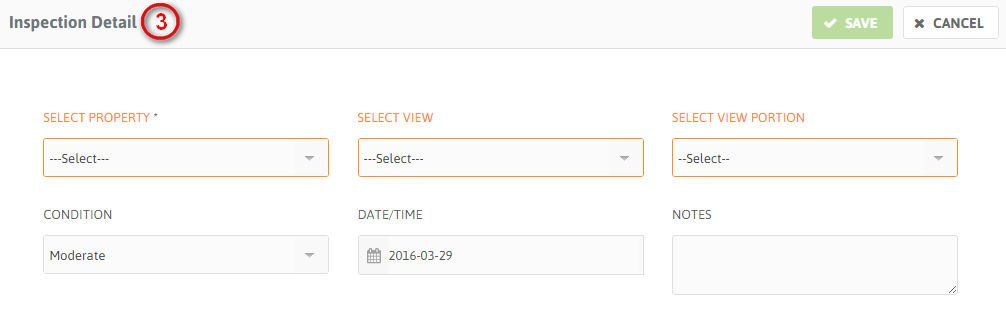
3. Fill the Required Inspection details such as Property, View and View Portion of the Property. You can also set the condition of the inspection, add date of inspection and notes regarding it.

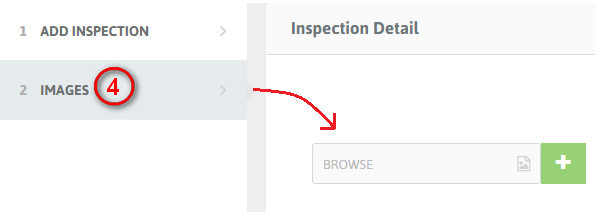
4. Click Images on the Left sidebar if you want to add images of the Inspection for the record.

5. Click Save to add the Inspection.

Filed Under: Getting Started

Getting Started
    • Upgrade/downgrade your account
    • Add your first Property
    • Add Your first Tenant
    • Add your first Lease
    • Add your first Transaction
    • Add your first Task
    • Add your first Inspection
Dashboard
    • Dashboard Date Range
    • Properties Financial Status Table
    • Pie chart
    • Monthly chart
Properties
    • Add Properties
    • View Properties
    • Property Units
    • Filter Properties
    • Export/Import your Properties
    • View Tenant List for The Particular Property
    • Active/ Inactive Property Status
    • Action Tab of Property List Table
Tenants
    • Add Tenants
    • View Tenants
    • Filter/Search Tenants
    • Export/Import your Tenants details
    • View Lease details of particular Tenant
    • Invite Tenants
    • Edit/Delete Tenants
Add / View Leases
    • Add a Lease
    • View a Lease
    • Filter a Lease
    • Export a Lease
    • Edit/Delete a Lease
Applicants
    • Add Applicants
    • View Applicants
    • Filter/Search Applicants
    • Select as Tenant
    • Edit/Delete Applicant
Documents
    • Add Document
    • View Document
    • Download Document
    • Edit/Delete Document
Tenants With Access
    • Re-invite Tenant
    • Disable Access for Tenant
Tenants Assessment
    • View the Reports
    • Filter/Search the Reports
    • Export the Reports
Useful Links
    • Useful Links
Transactions
    • Add Transactions
    • View Transactions
    • Filter/Search Transactions
    • Export your Transactions data
    • E-signed Receipt email option
    • Edit/Delete Transaction
    • Mark as Unpaid
Recurring Transactions
    • Add Recurring Transaction
    • View Recurring Transaction
    • Filter/Search Recurring Transaction
    • Export Recurring Transaction data
    • Edit/Use/Delete Recurring Transaction
Transactions Types
    • Add Transactions Types
    • View Transactions Types
    • Edit/Delete Transactions Types
Tasks
    • Add Tasks
    • View Tasks
    • Filter/Search Tasks
    • Export Tasks
    • Edit/Delete Tasks
Recurring Tasks
    • Add Recurring Task
    • View Recurring Task
    • Filter/Search Recurring Task
    • Edit/Delete Recurring Task
Reports
    • Rent Lease Status Report
    • Financial Report
Inspection
    • Add Inspection
    • View Inspection
    • Filter/Search Inspection
    • Export Inspection Data
    • Edit/Delete Inspection
Support
    • Feedback/Feature Request
    • Support Ticket
Notifications
    • View Alerts
    • Filter Alerts
    • Email to Tenant
Manage Account
    • Upgrade/downgrade your account
    • Payment Details
    • Cancel the Account
    • Re-activate Account/Service
My Profile
    • Update your Profile
    • Update Password
    • Sign out of all devices
Contacts/Vendors
    • Contacts/Vendors
Security
    • Two Step Verification
    • Forgot your Backup code?
Product
  • Features
  • Pricing
  • Sign up
  • App for Android
  • App for iOS
Company
  • About us
  • Investors
  • Refund Policy
  • Contact
Support
  • FAQ's
  • Blog
  • Security
Social Media links
  • Facebook
  • Twitter
  • you tube
  • Google plus
  • Pinterest
  • Tumblr
  • instagram
  • Stumble

Copyright ©2025-2026 World of Rental, Inc. All rights reserved. Read our Privacy Policy & Terms of Service. | WorldofRental.com is owned and operated by Rootways Inc.

TOP